How can I create a contact on your website
Print
Created by: Swathi J B
Modified on: Wed, 13 Aug, 2025 at 2:10 PM
How can I create a contact on your website- Creating a contact
- Login to your support portal
- Click on the New dropdown and select New Contact
- Fill in all the details of the contact in the contact form. The requirements for creating a new contact are listed below:
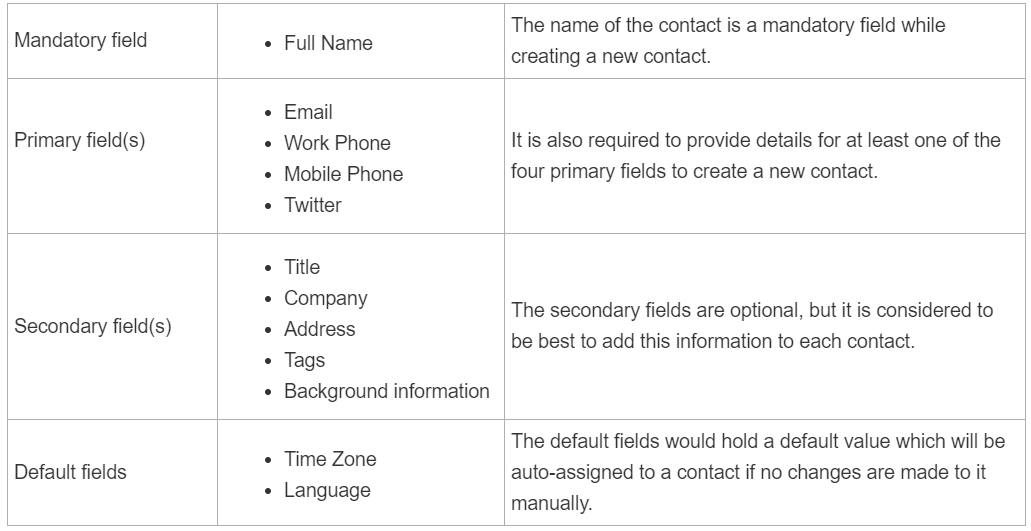
- The default fields would hold a default value which will be auto-assigned to a contact if no changes are made to it manually.
- Type in the contact's address, contact, social IDs, timezone, language, and other background information.
- If you are on the Premium or above plan, this feature can be used by clicking on the ticket icon against the associated company (multiple companies can be associated)
- Once you are done, click Save.
- A profile for the contact is now successfully added. Similarly, add as many contacts as needed.
- Once saved, the contact will receive a user activation email with a link to verify their contact and log into your customer portal.
Swathi is the author of this solution article.
Did you find it helpful?
Yes
No
Send feedback Sorry we couldn't be helpful. Help us improve this article with your feedback.
